Guide · Systems
How to Get an M-Pesa Till Number for Your Business
Astraque Softwares16 min read
If your customers regularly pay through M-Pesa, getting a Business Till can make collecting and managing those payments much easier.
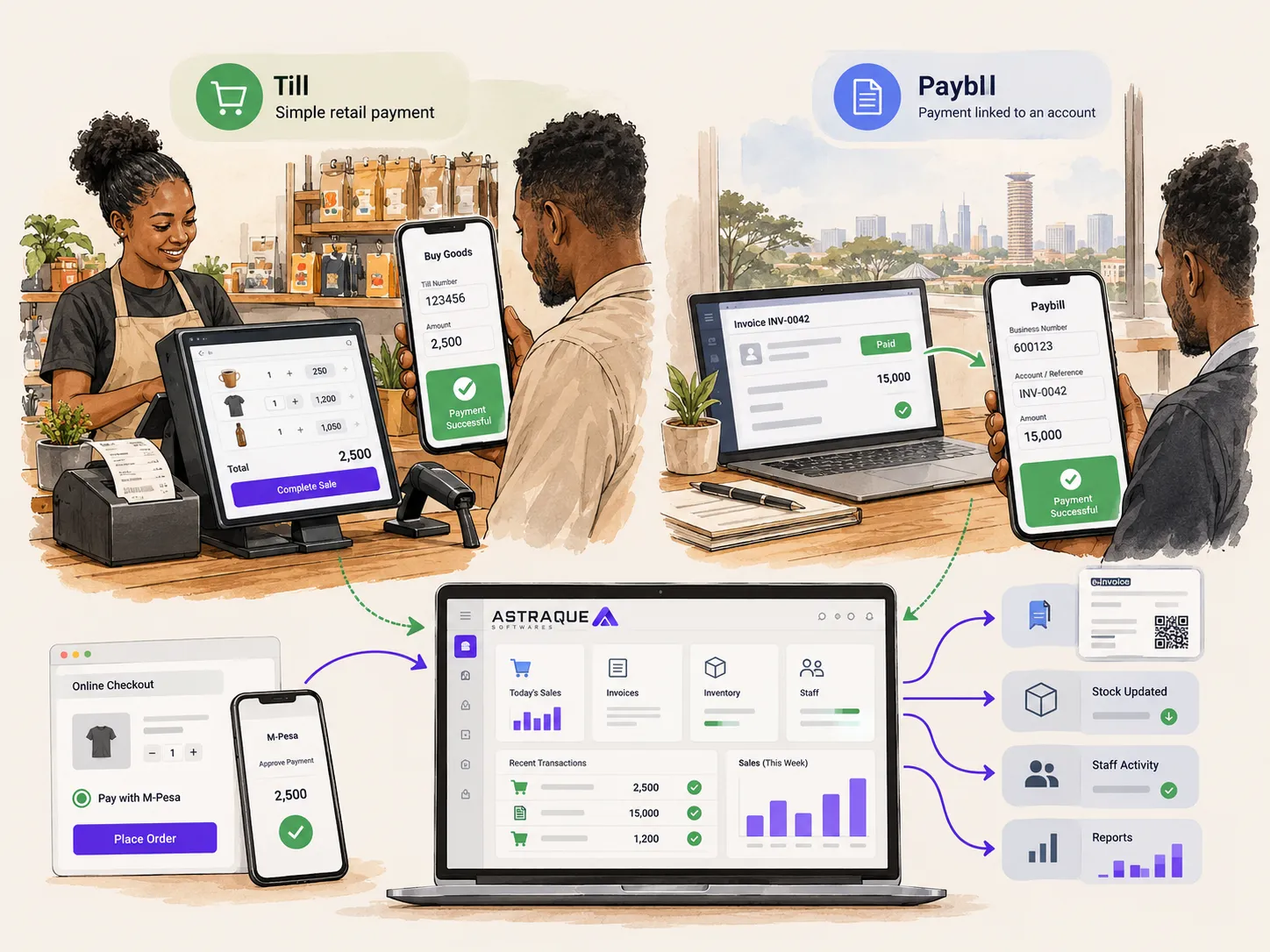
An M-Pesa Till Number is the number customers enter when paying your business through Buy Goods. It is commonly used by retailers, restaurants, salons, pharmacies, hardware shops, online businesses and other businesses where customers normally pay immediately for goods or services.
Safaricom describes the M-Pesa Business Till as a payment collection product that also allows the business to use collected funds for other transactions, including paying another Till, paying a Paybill, sending money to a mobile number and withdrawing funds.
Getting a Till is also much easier than it used to be because Safaricom now provides self-service applications through the M-Pesa Business Hub.
This guide explains how the process works and what you should think about after your Till becomes active.
What is an M-Pesa Till Number?
An M-Pesa Till Number is a number assigned to a business for receiving customer payments through Lipa na M-Pesa Buy Goods.
A typical customer payment looks like this:
- Open M-Pesa.
- Select Lipa na M-Pesa.
- Select Buy Goods and Services.
- Enter the business Till Number.
- Enter the amount.
- Confirm the payment.
Unlike a Paybill payment, the customer normally does not need to enter an additional account number.
This makes a Till particularly suitable for businesses where the payment itself is already associated with a sale happening at that moment.
For example, if a customer walks into a restaurant and their bill is KSh 2,800, the business usually only needs them to pay the amount.
There is no need for the customer to identify an invoice, tenant account or membership number.
Which businesses should use a Till Number?
Safaricom describes the Business Till as being suitable for merchants that collect money from customers regularly, including retail businesses, restaurants and similar businesses.
A Till can therefore make sense for businesses such as:
- supermarkets
- restaurants
- cafés
- salons
- barber shops
- pharmacies
- hardware shops
- clothing stores
- electronics shops
- petrol stations
- service businesses
- online shops
- delivery businesses
The common pattern is simple:
A customer buys something and pays immediately.
If your business instead needs customers to identify a particular invoice, property, school account or customer account when paying, a Paybill may be more suitable.
Is it free to get an M-Pesa Till Number?
Yes.
Safaricom currently states that applying for and getting an M-Pesa Business Till is free.
That does not mean every transaction through the Till is free.
Safaricom's current Business Hub information states that collections through a Business Till can attract merchant charges, with a maximum collection charge of 0.55% capped at KSh 200 per transaction. It also currently states that collections of KSh 200 and below are free and that customers generally are not charged for paying a Business Till, with an exception noted for fuel stations.
Charges can change, so you should confirm the current Safaricom tariff before making long-term pricing decisions around them.
Where do you apply for a Till Number?
Safaricom now provides applications through the M-Pesa Business Hub.
The Business Hub allows businesses to apply for products such as:
- Business Tills
- Paybills
- B2C accounts
- other M-Pesa business services
Safaricom describes the platform as a self-service environment where businesses can apply for new Tills and Paybills and later manage other business payment services.
You can create an account on the Business Hub using your name, email address and phone number.
Once registered, you can start a new Till application from the available services.
Prepare your business information first
Before beginning the application, collect the information associated with the person or business applying for the Till.
The exact documentation requested can depend on the ownership structure and the application you select.
For example, the requirements for an individual or sole proprietor may not be identical to those for a limited company or another organization.
Safaricom's Business Till materials state that applicants must provide the required documentation for their application, which is then reviewed before the Till is approved.
In practice, you should have your identification and relevant business registration information ready before starting.
Where the portal asks for documents, make sure the copies are:
- clear
- current
- readable
- consistent with the information entered in the application
A mismatch between names, business details or identification information can create unnecessary delays during verification.
Create your M-Pesa Business Hub account
Start by opening the M-Pesa Business Hub.
If you do not already have an account, choose the registration option.
Safaricom currently asks users registering for the Business Hub to provide their:
- first name
- last name
- email address
- phone number
The registration process then provides instructions for setting up access and logging into the platform.
If your business already uses certain existing Safaricom merchant services, you may not need to create an entirely separate merchant setup. Safaricom says existing M-Pesa Business Portal users and some existing merchant-service users are migrated into the newer Business Hub environment and can verify or update their details there.
Start a Business Till application
After logging in, look for the option to apply for a Till or Paybill.
Select Business Till or Buy Goods, depending on how the current interface presents the service.
Make sure you do not accidentally choose a Paybill if what you want is a normal Buy Goods Till.
Safaricom distinguishes the two products clearly.
The Business Till is intended for businesses that generally do not need to capture additional customer information during payment.
A Paybill is more appropriate when a customer needs to provide an account or reference number with the payment.
Enter the business details carefully
Complete the information requested in the application.
This may include information about the business, its ownership, contacts and nominated individuals associated with the account.
Do not treat this stage as something to rush through.
The information submitted here will later affect how the Till is managed.
Use the actual legal or registered business information where the application requests it.
Also pay attention to the phone number nominated for managing the Till.
The nominated number becomes important because several Business Till functions, including activation and USSD access, rely on it.
Upload the required documents
The application process will ask for the documentation relevant to the type of applicant.
Follow the checklist displayed by the current portal rather than relying on an old list copied from a blog or social-media post.
Safaricom's requirements and onboarding processes can change.
This is particularly important for registered companies, partnerships and other organizations where additional verification may be required.
Before submitting, check that every uploaded document is legible.
If someone reviewing the application cannot clearly read an ID number, business name or registration detail, the application may need to be corrected.
Review and submit the application
Before submitting, go through the application one more time.
Check:
- business name
- applicant details
- nominated phone number
- email address
- uploaded documents
- business type
Then submit the application.
After submission, the application enters Safaricom's review process.
You do not need to guess what is happening afterwards because the Business Hub allows applicants to check application status.
How to check your M-Pesa Till application status
Log into the Business Hub and open My Applications.
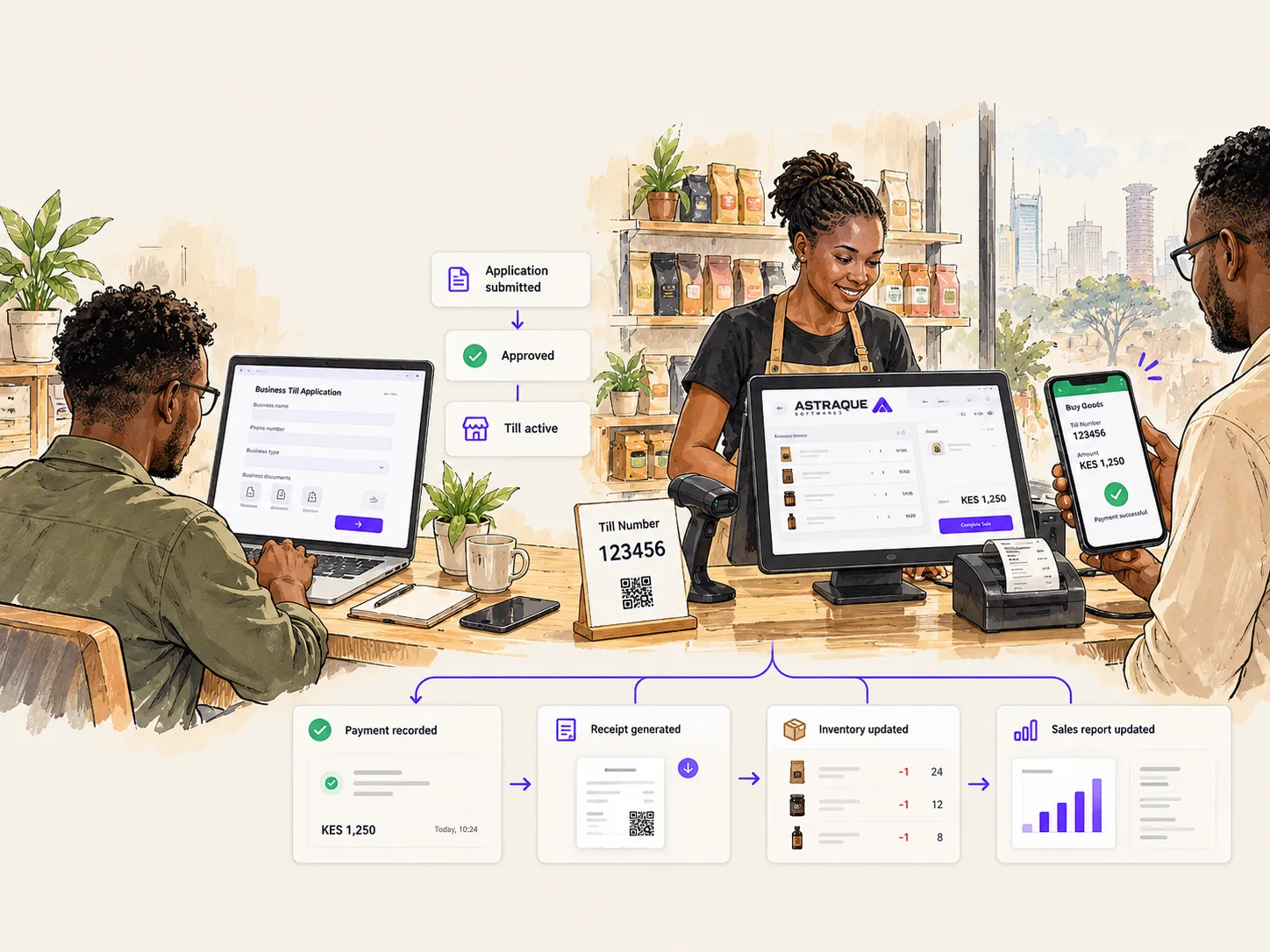
Safaricom currently uses several statuses for Till applications.
Pending
The application has been submitted and is waiting for processing.
Rejected
The application has not been accepted.
Safaricom says the rejection reason is displayed, which allows the applicant to identify what needs to be corrected.
Approved
The submitted documentation has been reviewed successfully and the Business Till is being processed.
Complete
The Till has been activated and its details have been sent to the applicant.
At this stage, the business can begin receiving payments.
Safaricom's public Business Hub guidance does not give one universal processing time for every type of application, so it is better to track the actual application status rather than relying on an assumed number of hours or days.
What are the Head Office, Store Number and Till Number?
Once you begin working with M-Pesa Business products, you may encounter several numbers.
They are not necessarily the same thing.
Safaricom currently defines them as follows:
Head Office Number
Used to manage multiple stores under the same business.
Store Number
Represents a specific store or operational unit.
Till Number
This is the number displayed to customers when they make Buy Goods payments.
For a small business with one location, you may not spend much time thinking about these distinctions.
They become much more important when a company has several branches or tills.
How to activate your M-Pesa Business Till
Receiving the Till Number is not necessarily the final step.
You also need to activate access for the business operator.
Safaricom currently provides activation through USSD or the M-Pesa Business App.
For USSD activation, the current process uses the nominated number and *234*2#.
The business owner enters the Store Number and accepts the relevant terms.
Safaricom then provides an Operator ID and start key.
The start key is used to create the permanent operator PIN.
Activation can also be completed through the M-Pesa Business App by entering the required Till or shortcode information and completing operator verification.
Keep the operator credentials secure.
They provide access to business funds and should not be shared casually among employees.
You can manage the Till through the M-Pesa Business App
Once the Till is active, the M-Pesa Business App provides another way to manage it.
Safaricom says merchants can use the app to view collections, access statements and perform various Business Till transactions.
Depending on the account setup, Business Till functionality can include:
- viewing balances
- withdrawing funds
- paying other Tills
- paying Paybills
- sending money
- viewing statements
- managing operators
- managing stores
This is more useful than treating the Till as a number that only receives money.
It becomes a business payment account.
Do you need a separate Till SIM card?
Safaricom also provides a Till SIM for receiving payment notifications.
Its current Business Hub guidance says this SIM is specifically for notifications and is not itself used for transacting from the Business Till.
If you need a Till SIM or a replacement, Safaricom currently provides options through Safaricom shops, care desks and supported self-service channels.
For a serious business system, however, you should avoid designing your entire payment process around somebody watching SMS notifications on a Till phone.
There is a better way.
Your POS can confirm Till payments automatically
Once you have a Business Till, it can become part of your software.
Safaricom's Daraja platform provides APIs that allow developers to connect M-Pesa payments with websites, mobile applications, POS systems and other business software.
A live Till or Paybill shortcode can be connected to a production Daraja application after the relevant business and API setup has been completed.
This means a cashier does not necessarily need to stare at a phone waiting for the customer's SMS.
Your POS can receive payment information directly from the payment system.
Imagine a customer purchases goods worth KSh 7,850.
The cashier creates the sale.
The customer pays the Till.
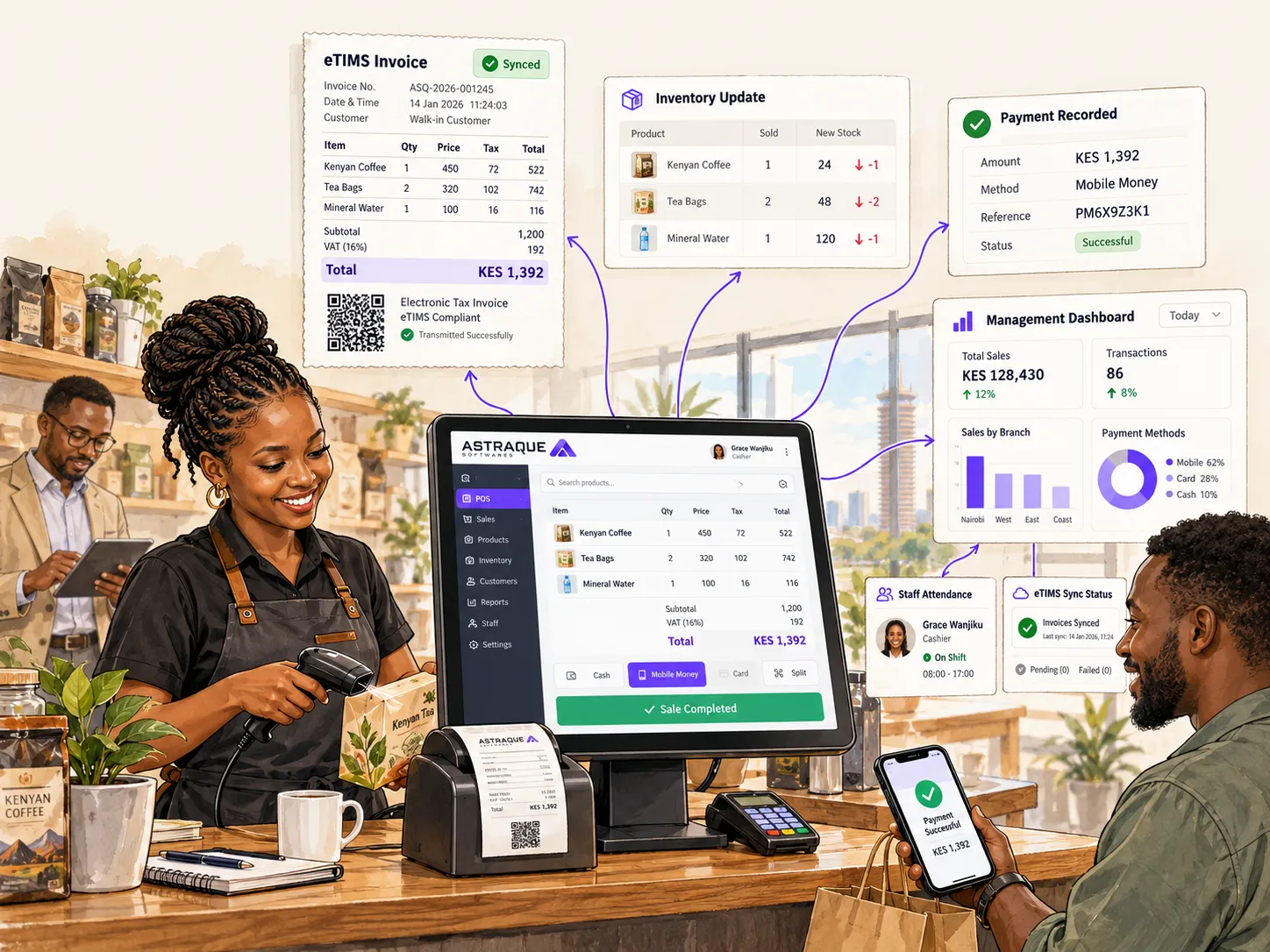
Your integrated POS can then:
- receive the payment confirmation
- associate it with the sale
- mark the transaction as paid
- update inventory
- print the receipt
- update the day's sales
- record which cashier processed the transaction
- update management reports
From the customer's perspective, they simply paid normally.
The automation happens behind the scenes.
A website can also collect Till payments
A Till is not limited to a physical counter.
Online businesses can also integrate M-Pesa into their checkout workflow.
For example, a customer can:
- Add products to their cart.
- Proceed to checkout.
- Choose M-Pesa.
- Enter their phone number.
- Receive an STK Push.
- Approve the payment.
- Have the order confirmed automatically.
Your website can then process the successful payment rather than asking the customer to send an M-Pesa screenshot.
Safaricom's developer platform supports connecting live M-Pesa shortcodes, including eligible Till configurations, to production applications.
Avoid running your Till manually once transaction volumes grow
For a very small business, manual confirmation may be acceptable.
If you receive ten payments per day, checking transactions may not create much work.
At 500 transactions per day, the same workflow becomes a problem.
Employees start:
- checking phones
- comparing messages
- typing receipt numbers manually
- searching for missing payments
- reconciling transactions after closing
- correcting mistakes
The business has already digitized the payment but is still managing the process manually.
Integration removes much of that unnecessary work.
A Till works best when it is part of your POS
For a physical business, the Till should ideally be connected to the system already recording the sale.
One customer transaction can then drive several business operations at once.
For example:
Sale completed
↓
M-Pesa payment confirmed
↓
Inventory reduced
↓
Receipt or invoice generated
↓
Cashier activity recorded
↓
Management dashboard updated
The customer sees one simple transaction.
The business receives structured information behind it.
That is much more valuable than simply receiving an SMS.
Your Till can become part of a larger ERP
The same principle applies to larger businesses.
A company operating several branches may want its M-Pesa collections connected with:
- branch sales
- inventory
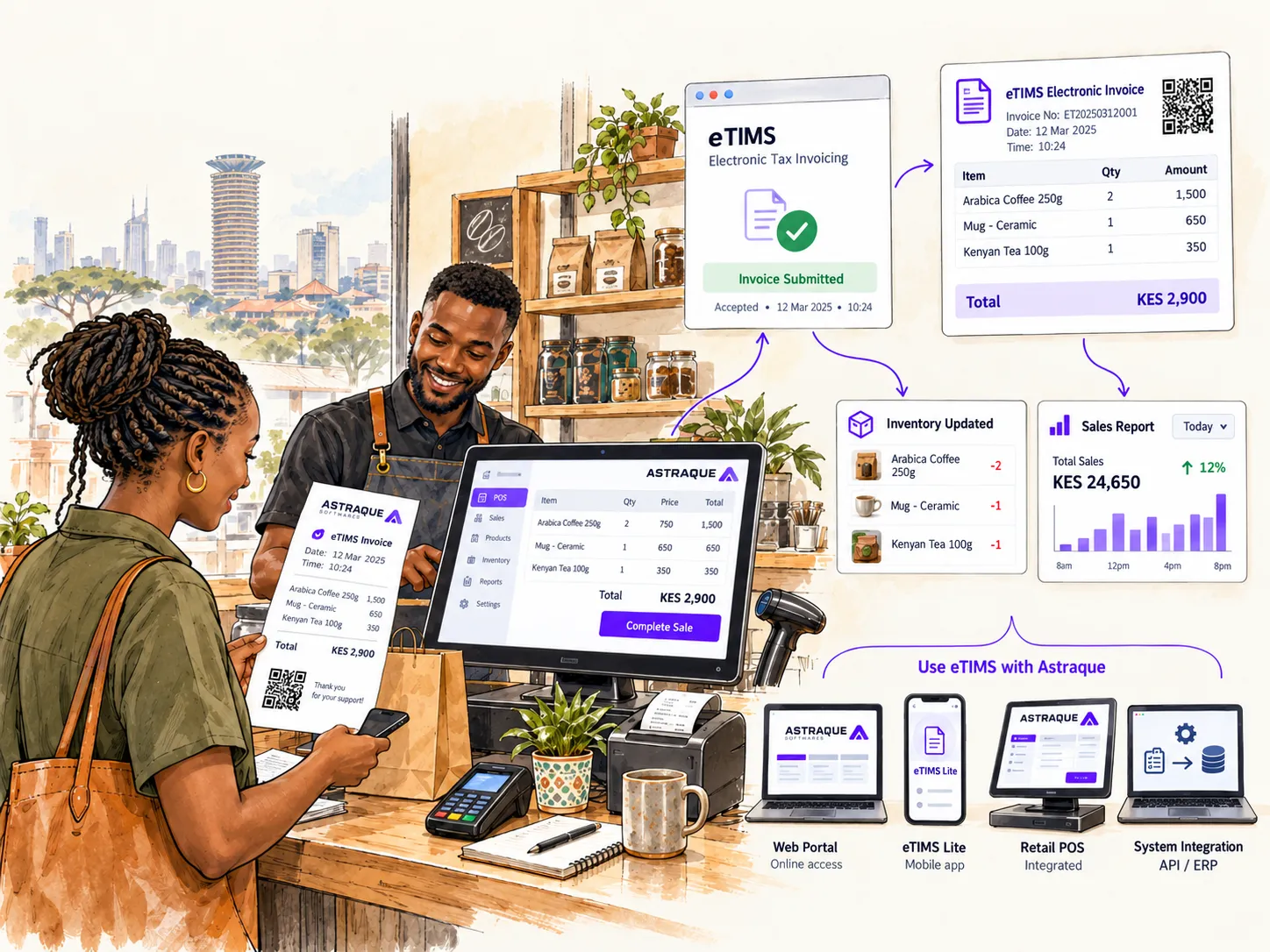
- eTIMS invoicing
- accounting
- staff accounts
- customer records
- employee attendance
- procurement
- reports
- reconciliation
At that point, M-Pesa is no longer a separate payment channel.
It becomes one component of the business system.
When should you choose Paybill instead?
Do not apply for a Till simply because it is the M-Pesa product you see most frequently at shops.
Look at your payment workflow first.
If a customer normally walks into your business, receives a total and pays immediately, a Till is usually a natural fit.
If customers need to specify what they are paying for, Paybill may be more appropriate.
Examples include:
- rent payments
- school fees
- utility accounts
- subscriptions
- invoice settlements
- loan repayments
The account-number field in Paybill allows the payment to carry a reference.
A Till keeps the payment process simpler when that additional reference is unnecessary.
Astraque Softwares can connect your Till to your business system
Getting a Till Number solves the payment collection problem.
It does not automatically solve payment reconciliation, inventory management, reporting or invoicing.
Astraque Softwares builds custom POS and ERP systems that can connect the payment process with the rest of the business.
Depending on your requirements, that can include:
- M-Pesa payment confirmation
- POS checkout
- inventory
- receipts and invoices
- customer records
- eTIMS workflows
- multiple branches
- cashier accounts
- real-time attendance reports
- management dashboards
- payment reconciliation
For an online business, M-Pesa can also be integrated directly into a website or application so that successful payments automatically update orders.
The objective is simple:
once the customer pays, your system should know.
Your staff should not have to manually reconstruct the transaction afterwards.
Getting the Till is the easy part
For most businesses, applying for a Business Till is now a straightforward process.
Create your M-Pesa Business Hub account.
Choose the Business Till product.
Provide the requested business information and documentation.
Submit the application.
Track the status.
Activate the Till after approval.
Then start receiving payments.
The more important decision comes after that.
You can treat the Till as another phone that receives payment messages.
Or you can connect it to the software running your business.
For a growing business, the second option is where M-Pesa becomes much more useful.